'%3e%3c/path%3e%3cpath%20d='M20.616%2010.835a14.147%2014.147%200%2001-4.45-3.001%2014.111%2014.111%200%2001-3.678-6.452.503.503%200%2000-.975%200%2014.134%2014.134%200%2001-3.679%206.452%2014.155%2014.155%200%2001-4.45%203.001c-.65.28-1.318.505-2.002.678a.502.502%200%20000%20.975c.684.172%201.35.397%202.002.677a14.147%2014.147%200%20014.45%203.001%2014.112%2014.112%200%20013.679%206.453.502.502%200%2000.975%200c.172-.685.397-1.351.677-2.003a14.145%2014.145%200%20013.001-4.45%2014.113%2014.113%200%20016.453-3.678.503.503%200%20000-.975%2013.245%2013.245%200%2001-2.003-.678z'%20fill='url(%23lobe-icons-gemini-1-_R_0_)'%3e%3c/path%3e%3cpath%20d='M20.616%2010.835a14.147%2014.147%200%2001-4.45-3.001%2014.111%2014.111%200%2001-3.678-6.452.503.503%200%2000-.975%200%2014.134%2014.134%200%2001-3.679%206.452%2014.155%2014.155%200%2001-4.45%203.001c-.65.28-1.318.505-2.002.678a.502.502%200%20000%20.975c.684.172%201.35.397%202.002.677a14.147%2014.147%200%20014.45%203.001%2014.112%2014.112%200%20013.679%206.453.502.502%200%2000.975%200c.172-.685.397-1.351.677-2.003a14.145%2014.145%200%20013.001-4.45%2014.113%2014.113%200%20016.453-3.678.503.503%200%20000-.975%2013.245%2013.245%200%2001-2.003-.678z'%20fill='url(%23lobe-icons-gemini-2-_R_0_)'%3e%3c/path%3e%3cdefs%3e%3clinearGradient%20gradientUnits='userSpaceOnUse'%20id='lobe-icons-gemini-0-_R_0_'%20x1='7'%20x2='11'%20y1='15.5'%20y2='12'%3e%3cstop%20stop-color='%2308B962'%3e%3c/stop%3e%3cstop%20offset='1'%20stop-color='%2308B962'%20stop-opacity='0'%3e%3c/stop%3e%3c/linearGradient%3e%3clinearGradient%20gradientUnits='userSpaceOnUse'%20id='lobe-icons-gemini-1-_R_0_'%20x1='8'%20x2='11.5'%20y1='5.5'%20y2='11'%3e%3cstop%20stop-color='%23F94543'%3e%3c/stop%3e%3cstop%20offset='1'%20stop-color='%23F94543'%20stop-opacity='0'%3e%3c/stop%3e%3c/linearGradient%3e%3clinearGradient%20gradientUnits='userSpaceOnUse'%20id='lobe-icons-gemini-2-_R_0_'%20x1='3.5'%20x2='17.5'%20y1='13.5'%20y2='12'%3e%3cstop%20stop-color='%23FABC12'%3e%3c/stop%3e%3cstop%20offset='.46'%20stop-color='%23FABC12'%20stop-opacity='0'%3e%3c/stop%3e%3c/linearGradient%3e%3c/defs%3e%3c/svg%3e)

The two-phase workflow
The idea is simple but you have to respect the order: you don't ask Gemini for an already-animated infographic. First you build the static image with the right style, then you turn it into a short looping video. Two phases, two models.
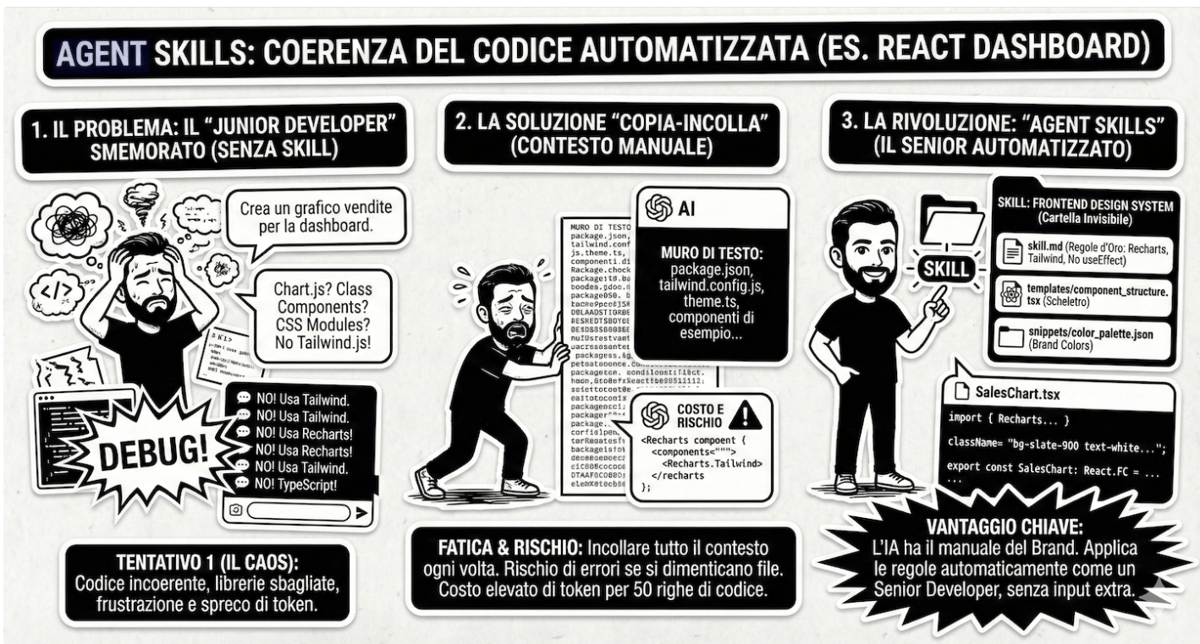
- 1 Phase 1 (Static image): with nano banana you generate the infographic in B&W Sticker Art style, starting from a reference image for style and character.
- 2 Phase 2 (Animation): you pass the image to VEO and add looping micro-movements, only on the characters. The text stays still.
The final quality is almost entirely built in Phase 1: if the static image is consistent, the animation is just the cherry on top.
Phase 1: the image with nano banana
The trick is to use a reference image as a style sheet, not as a layout to copy. You tell the model to take only two things: the rendering style (Sticker Art Die-Cut, black and white, thick white borders) and the character's physique. Everything else (composition, actions, text) it reinvents for every new theme.
- 1 Open a new chat on Gemini and make sure you're using the image model (nano banana).
- 2 Upload the reference image: the one you want to inherit the style and character physique from.
- 3 Paste the prompt below, filling in the final bracket with the text you want turned into an infographic.
- 4 Wait for the model to confirm, then ask for the first infographic. If the style holds up, keep going; otherwise repeat the critical instruction.
The part that makes the difference is the critical instruction about the image: it clearly separates "what to clone" from "what to ignore". Without this distinction, the model copies the reference layout and you lose the infographic.
The base prompt to copy
Copy this template, attach the reference image and replace the final bracket with the text you want to turn into an infographic.
CRITICAL INSTRUCTION ABOUT THE ATTACHED IMAGE

Use the image I've given you EXCLUSIVELY as a "style sheet" and
"character reference". You must copy ONLY two things:

1. THE RENDERING STYLE: black-and-white Sticker Art Die-Cut, thick white
   borders, sharp black outlines, expressive comic-like look.
2. THE CHARACTER'S PHYSIQUE: young guy, short dark hair, neat dark beard,
   lively expression.

COMPLETELY IGNORE the layout, the composition, the character's actions
and any text or content present in the reference image.

ROLE: You are a Visual Designer specialized in narrative infographics in
B&W Sticker Art. You adapt the fixed character to new layouts and new
actions based on the theme I give you.

OPERATING RULES:
- Invent a layout structure suited to the topic.
- Have the bearded character perform different actions for each step.
- Keep the B&W Sticker Art aesthetic strict throughout the infographic.

Confirm you understand you must "clone" the character's look and graphic
style, but completely reset composition and actions with every new
request.

THEME TO TURN INTO AN INFOGRAPHIC:
[TEXT I WANT TO TURN INTO AN INFOGRAPHIC]
The parts in ALL CAPS in brackets are your inputs. If you change the graphic style (colors, linework), rewrite points 1 and 2 of the critical instruction: they're the only two levers that matter.
Phase 2: the animation with VEO
Open a new chat on Gemini, select VEO and upload the static image you just generated. The goal here is the opposite of "make everything move": you want looping micro-movements, only on the characters, with text and background still.
Your goal is to add very subtle looping animations
EXCLUSIVELY to the characters.

All other elements (text, background, icons) stay completely
static. No camera movement, no zoom.

The movement must be minimal and loop-repeatable: a breath, a
small gesture, a blink. The output is meant for a LinkedIn
post, so it has to catch attention without distracting from reading.
A minimal movement (a breath, a blink) is what stops the scroll on LinkedIn without making the post unreadable. If the video comes out too "alive", repeat the prompt insisting on exclusively to the characters.
Tips and limitations
The workflow isn't magic: it's discipline. Style locked in Phase 1, minimal movement in Phase 2. If you respect the order and stay strict with the critical instruction, you get recognizable, consistent animated infographics: a format that's yours, not just any template.


