Guide tools

NotebookLM NotebookLM Canva Canva
~5 min read Updated Aug 29, 2026

From NotebookLM to Canva editable presentations

Beautiful slides from NotebookLM, made genuinely editable: bring them into Canva and extract the text with Grab Text.

The problem: beautiful slides, locked shut

Google's NotebookLM generates genuinely beautiful presentations: clean infographics, sensible visual hierarchy, polished layouts. The free plan is generous and is more than enough for most people.

There's only one limit, but it's a big one: if you try to edit a slide, NotebookLM regenerates everything from scratch. Change one word and you lose the layout you liked. Every tweak is a gamble. That's why it's worth generating well once, and then moving everything elsewhere.

The method in three moves:
  1. 1 Generate the presentation on NotebookLM, taking care with the settings.
  2. 2 Download it as PDF or PPTX.
  3. 3 Open it in Canva and extract the text with Grab Text to make it editable.

Result: NotebookLM's visual quality with Canva's editorial control. Roughly 60-70% of the time saved compared to redoing everything by hand.

Generate a good deck in NotebookLM

Add your sources in the left column. Then, in the Studio panel on the right, choose Presentation. Don't generate on the fly: click the pencil icon first to open the options.

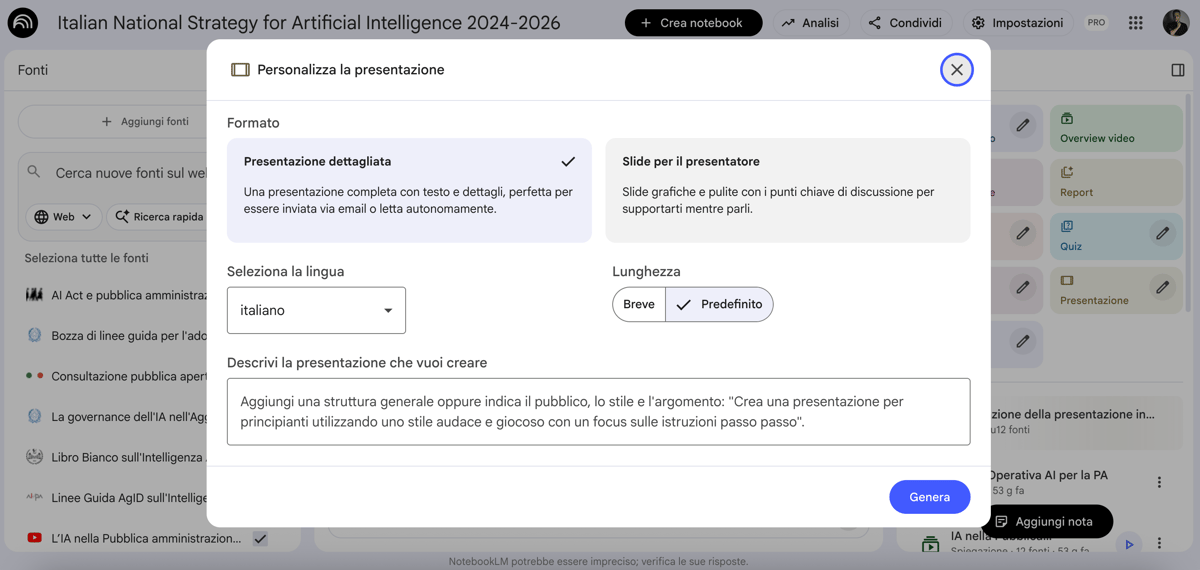
1 Format: choose "detailed" if you'll use it as a document to read, or the version for presenting live.
2 Language: select English.
3 "Default" length tends to cover the content better than "short".
4 Describe the style and look you want in the text field, then hit Generate.

This is the style I usually paste into the description field. The line about the font is the part that really matters (see the last section):

STYLE FOR NOTEBOOKLM
Generate the presentation in English, detailed format and default length.

Visual style: clean, professional, consistent. Use the same font on every slide (typographic uniformity, a single font across the whole document). Avoid decorative fonts that differ between titles and body text.

Clear hierarchy: one title per slide, essential text, generous white space.

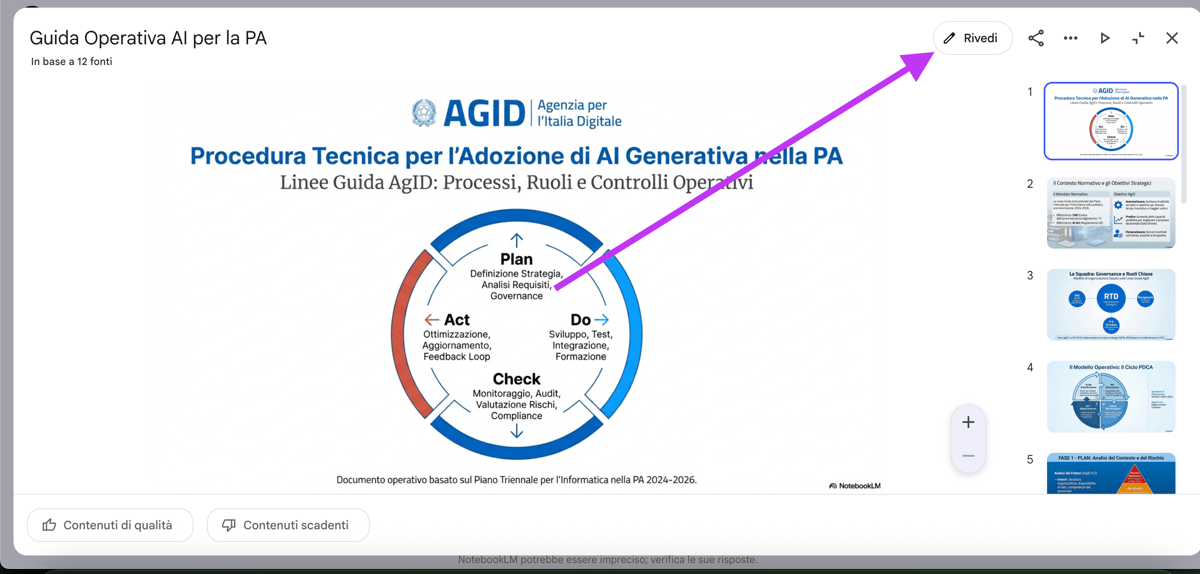
Once it's generated, open it full screen (button in the top right) and use Refine to polish the slides via prompt: text changes, visual tweaks, elements to remove. Fix what you can here, before downloading.
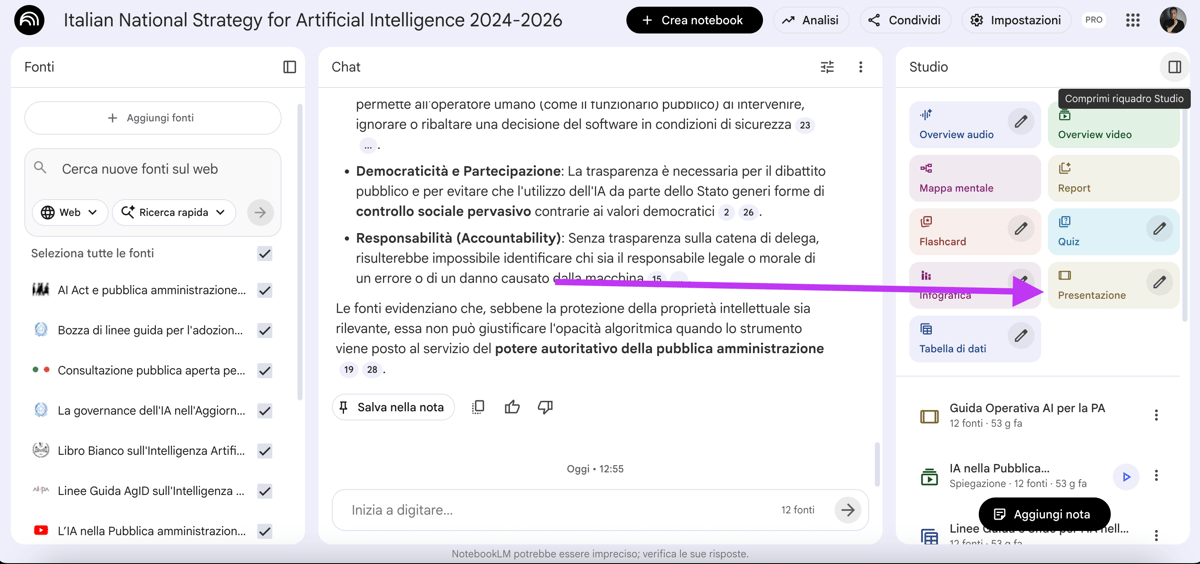
NotebookLM's Studio panel with the Presentation option and the pencil icon to open the settings
In the Studio panel, click the pencil next to Presentation to open the options before generating.
NotebookLM's presentation customization panel with the format, language and length options
The options to set before generating: format, English language, length and the field to describe the style.
The generated presentation open full screen in NotebookLM with the Refine button to polish slides via prompt
Expand the viewer and use Refine to fix up the slides with a prompt, before downloading them.

Download as PDF or PPTX

Once the presentation convinces you, open it and click the three-dot menu → Download. You have two options, both good for bringing everything into Canva:

Download PDF

The format most faithful to the visual result. Perfect if your goal is to extract the text in Canva while keeping the look of the slides.

Download PPTX

The classic PowerPoint format. Handy if you also want direct compatibility with tools other than Canva.
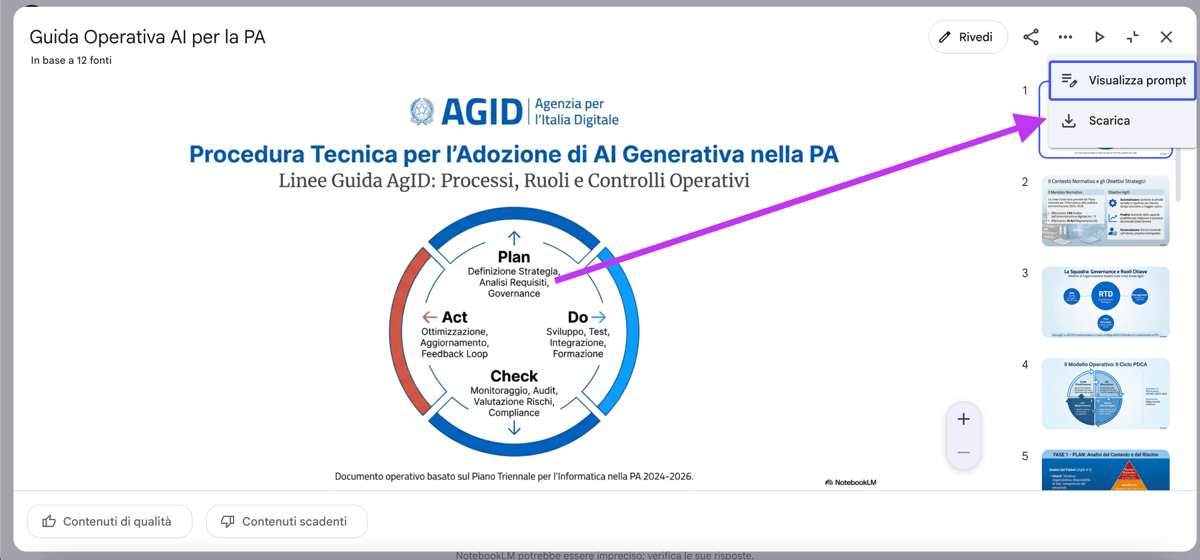
NotebookLM's three-dot menu open on the Download item, with the Download PDF and Download PPTX options
From the three-dot menu choose Download, then PDF or PPTX to take the slides out of NotebookLM.

Make the text editable in Canva

Upload the downloaded file to Canva. The slides arrive as images: the text is "baked" into the graphics, not yet editable. This is where Grab Text comes in, slide by slide.

On every slide you want to edit:
  1. 1 Select the slide and click "Edit" (top left).
  2. 2 Open Magic Studio → Grab Text.
  3. 3 The AI recognizes the text elements inside the image.
  4. 4 Select the text you need and click "Grab": it becomes real, editable text.

From there you change words, colors, sizes like on any Canva project. Grab Text requires Canva Pro.
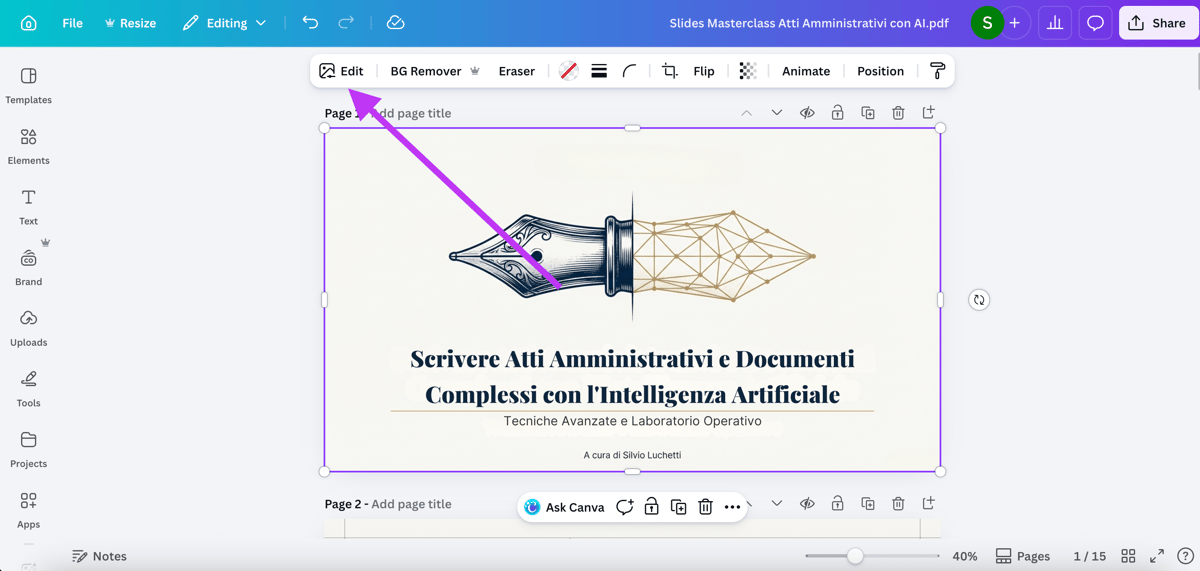
The slide uploaded to Canva with the Magic Studio menu open on the Grab Text tool
In Canva, inside Magic Studio, open the Grab Text tool on the slide you want to edit.
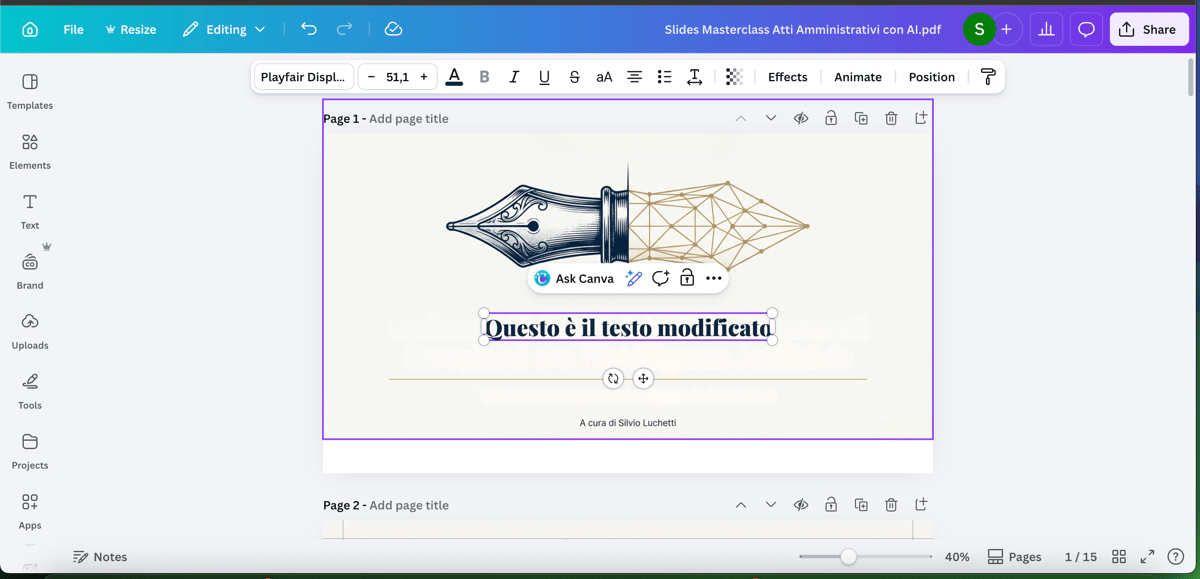
The slide's text extracted by Grab Text and turned into real, editable text in Canva
After the Grab, the text becomes a real editable element: change words, colors and sizes like on any Canva project.

Limits and the trick for the best result

The trick that changes everything: when you generate in NotebookLM, explicitly ask it to use the same font on every slide. Typographic uniformity makes the text extraction in Canva much cleaner and more consistent.

You need Canva Pro to use Grab Text: without a subscription, the final step isn't available.
Sometimes the font changes during the image-to-text conversion. That's exactly why you lock in a single font upfront.
The process isn't fully automatic: some manual touch-up slide by slide is still needed.

You can also stop halfway and use only NotebookLM on the free plan, if the presentation as-is is enough for you. But if you want genuinely top-tier presentations, with the AI's graphics and your own precise words, it's the step through Canva that makes the difference.

From a Confusing Brief to a Complete UX/UI A vague brief becomes a navigable app. Product Ad From a Single Photo A photo becomes an animated ad, no code required. Get Claude to Watch Your Videos Claude watches your videos and turns them into text. Higgsfield Inside Claude Code Generate images and video while you code in Claude Code. Turn a Loom Recording Into a Web Page A screen recording becomes a web page, no code. Vertical Shorts With NotebookLM Your sources become a vertical short. Luxury Landing Pages on Lovable A luxury landing page from a single prompt. Excalidraw Running Locally Excalidraw free on your computer, no code. Mistral OCR in Your Workflow Extract text from documents with Mistral OCR. Claude SEO in the Terminal 25 free SEO skills inside Claude Code. Google Search Console inside Claude Code Search Console data inside your terminal. Claude Code Routines Claude working on its own, computer off. Clone a Landing Page in React With v0 Clone a real landing page into React code. Context Economy With Claude Work light and don't burn through Claude's limits. From Prompt to Self-Improving Skill Claude skills that learn from your mistakes. From NotebookLM to Canva: Presentations NotebookLM slides, finally editable in Canva. The Map for Understanding Every AI Tool 12 categories for placing any AI tool. Transparent PNGs With ChatGPT Real transparency, not a fake checkerboard. Animated Infographics With Gemini Infographics that loop, animated with Gemini. Market Research With Deep Research Deep Research as your market analyst. Get Cited by AI Search Engines (AEO) Become a source that ChatGPT and Perplexity cite.