

What it is (and what it's for)
NotebookLM is Google's tool that reasons only over the sources you give it: you upload PDFs, documents, links, or videos, and it summarizes them, explains them, and — here's the interesting part — turns them into ready-to-use content.
Among these is the Video Overview, and within it the Shorts format: a short, narrated, vertical (9:16) video with text and visuals generated automatically from your sources. In practice: from a document to a short ready for Reels, TikTok, or YouTube Shorts, with no editing.
- 1 Open NotebookLM and create a new notebook.
- 2 Upload the sources (PDFs, documents, links, or videos) to base the video on.
- 3 Go to the Studio panel on the right and choose Video Overview.
- 4 In the options, choose the Shorts format (vertical 9:16) and generate.
Step 1 — Add your sources
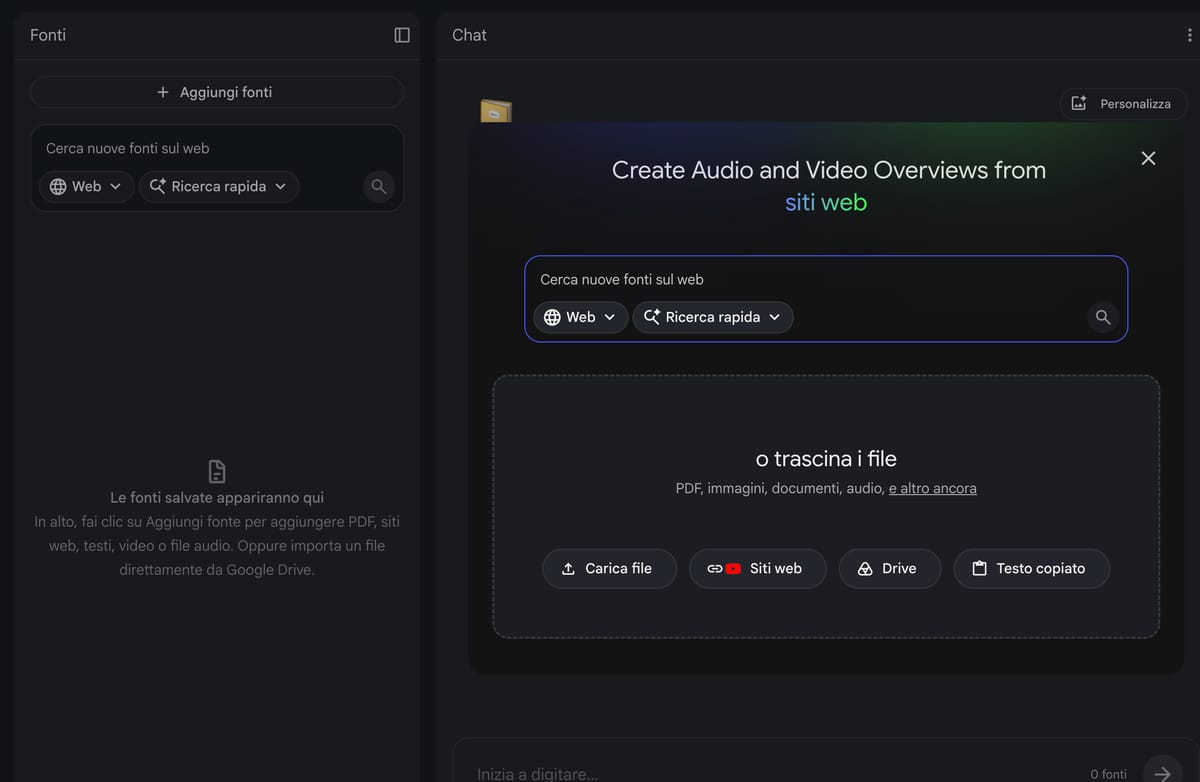
Open notebooklm.google.com and create a new notebook with "Create new." The window to add sources opens right away.
Upload what you want to base the short on: a PDF, a Google Doc, a link to a website, a YouTube video, or pasted text. You can add multiple sources, but for a short keep everything focused on a single topic.
Step 2 — Open Studio and generate the video
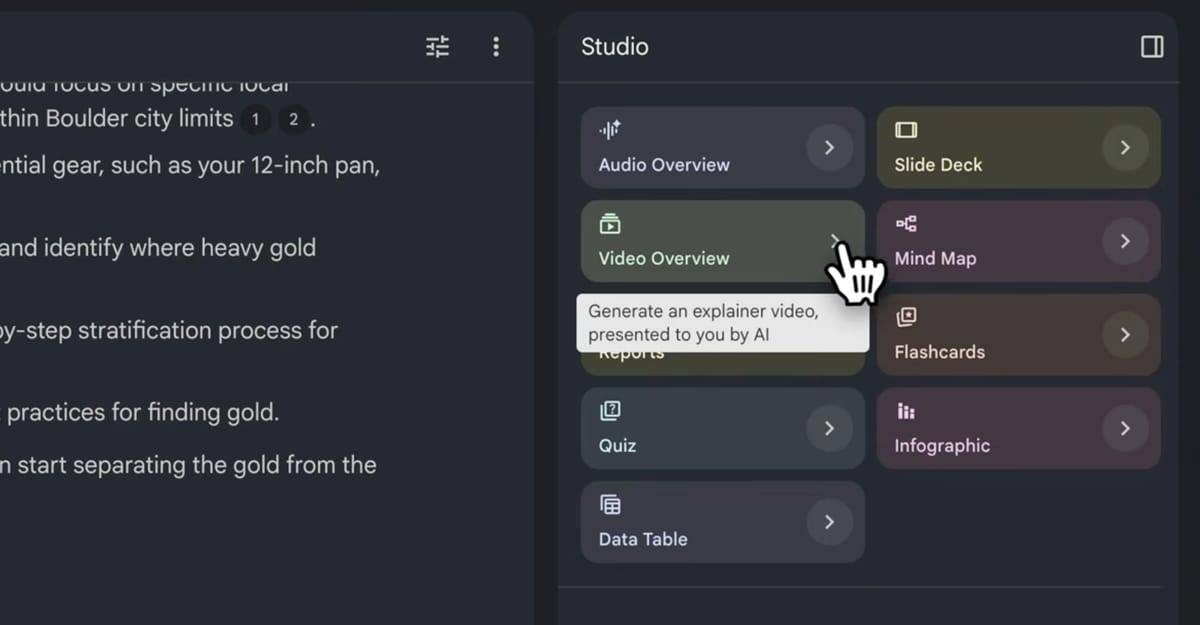
On the right is the Studio panel: this is where NotebookLM creates content (audio, video, maps, reports). Find the Video Overview option and click it.
Before generating, if an instructions field appears, use it to set the focus: for example, "explain only the top 3 points, light tone for social."
Step 3 — Choose the Shorts format
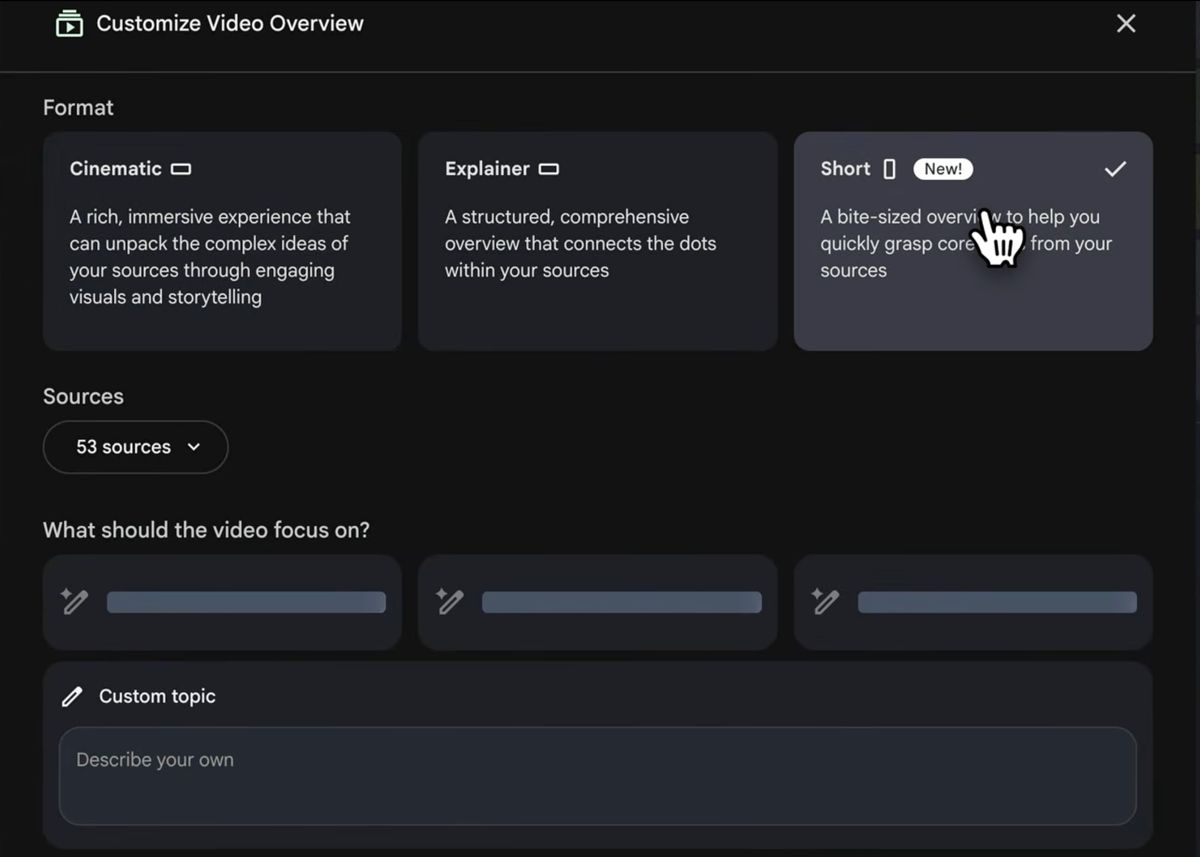
Among the Video Overview options, choose the Shorts format: it's the vertical, short version made for social, while the "Explainer" format is longer and horizontal.
Confirm with Generate and NotebookLM queues the video: creation takes a few minutes, and you can close the panel in the meantime and come back later.
- Fewer, more focused sources = a sharper short. A short video can't cover ten documents: give it 1-3 sources on a single topic.
- Use the instructions field (when available) to set the focus: "focus only on the top 3 tips," "light tone, for social."
- Check your sources' language against the notebook's language: if you want the short in English, keep everything in English.
- Regenerate: if the first attempt doesn't convince you, change the instructions or trim the sources and try again.
The result
When the video is ready you'll find it in the Studio panel: you can watch it, download it, and upload it wherever you want. Here's an example of a short generated by NotebookLM.
Limits to know
- On web: available to everyone, even with free accounts. Only limit: English only, for now.
- On mobile: still reserved for Google AI Pro and Ultra subscribers.
- Language: output in English only; other languages are coming in the next few weeks (no official date).
- Business/Workspace accounts: not a plan restriction, but managed accounts get new features through a separate, slower rollout — it may not have arrived yet, and the admin can restrict it.
In short: the simplest, fastest way to use them is a personal Google account, on web, in English. 🚀
Keep them in mind and the short becomes a super-fast way to turn a source into a video ready to publish. You'll find the tool at notebooklm.google.


