Claude Code Basics Lesson 2 of 46
What Claude Code Is: The Collaborator Who Walks Into Your Studio

- Claude Code isn't a chat in another window: it's a collaborator that walks into your computer and works on your files.
- The difference from the chat isn't that it answers better: it's that it leaves finished work behind it.
- It doesn't only live in the terminal: there's a desktop app with its own regular window, and that's the one we'll use in the course.
- It has precise limits, and knowing them from the start saves you from nasty surprises.
The consultant on the phone and the collaborator who walks in
Imagine you have a problem with your work documents. With Claude Chat you call a consultant: you explain the situation, they tell you what you'd do well to do, you hang up and you're the one who does the work. Great advice, zero things done.
With Claude Code that collaborator walks into your studio. They open the drawers, look at the actual documents — not your description of the documents — sort them out, and when they leave something on the desk has changed.
That's the only difference that matters. Not "it's smarter": underneath it can be running the exact same model as the chat. What changes is what it's allowed to do.
What "walks in" means, concretely
When you open Claude Code, you open it inside a folder on your computer. That folder becomes its studio. From there it can:
read the files in there, to understand what it's dealing with;
edit them, or create new ones;
run commands on your computer, meaning make things happen, not just write about them.
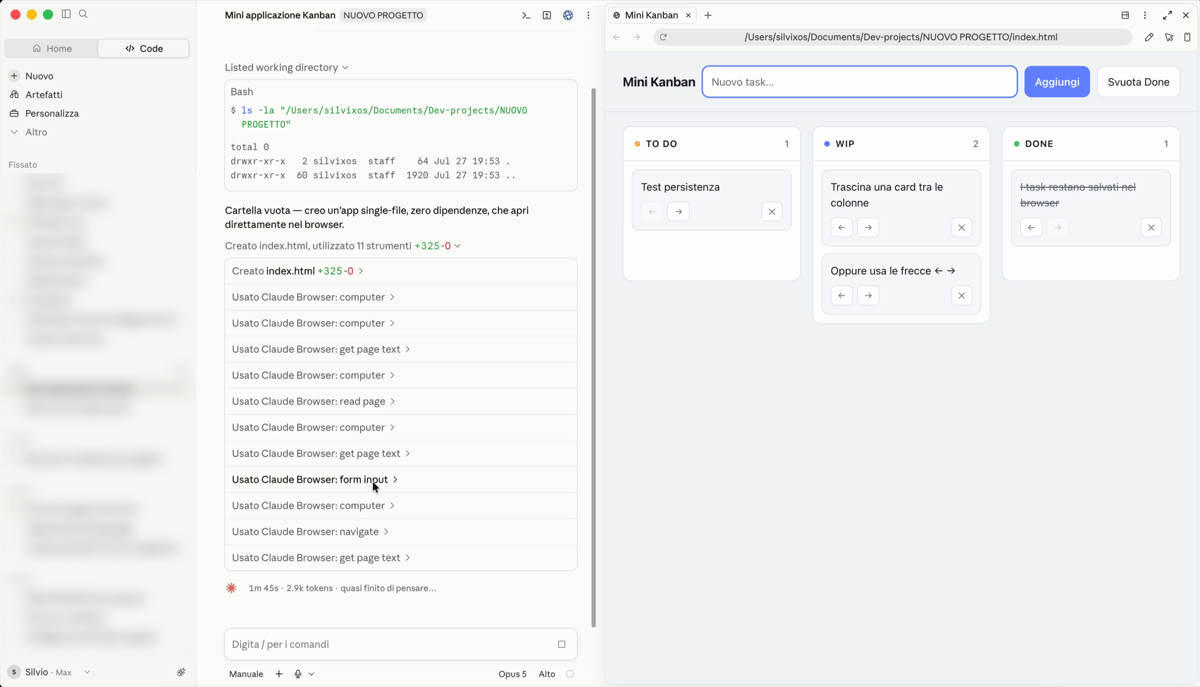
And when a move is sensitive, it stops and asks for your permission. There's a whole chapter further ahead on how much leash to give it: for now, take it as reassurance — it doesn't go off on its own at full speed.
Where you'll find it
Claude Code was born in the terminal, and that's where you'll see it used in most of the videos out there. But today there's also a desktop app: a regular program, with its own window and buttons.
And in there you'll find confirmation of what we said in the last lesson: the app has three tabs at the top — Chat, Cowork, and Code. The ecosystem we were talking about isn't an abstraction: it's three tabs, side by side. The one we care about for the whole course is Code.
In the course we'll use the desktop app, because if you're starting from zero it's the easiest way in — but every time I'll also tell you how to do the same thing from the terminal, so you can follow along from wherever you prefer. What you learn holds identically in both: the window changes, not the tool.
The limits of this image (read them now)
The image of the collaborator will stay with us for the whole course, so it's worth saying right away where it doesn't hold up:
It doesn't remember anything from yesterday. Every time it walks in as if it were day one, unless you leave something written for it. There's a way to do that, and we'll see it.
It has no judgment on your work. If you asked for the wrong thing, it does it anyway — well, fast, and wrong.
It needs watching, not leaving alone. It's not an autopilot: you're still the one in charge, and further ahead you'll see exactly which levers you have.
What's next
So far we've said what it does: walks in, opens, edits, executes. In the next lesson we pop the hood and look at how it does it — because underneath there's a precise loop that repeats, always the same one, and once you see it you can't stop seeing it.
Did you get it?
Two minutes, no grade. Trying to answer — even getting it wrong — cements the concepts far more than rereading. Not in the mood? Skip it: the lesson still counts as complete.
What's the main difference between Claude Chat and Claude Code?
The model underneath can be the same one: what changes is what it's allowed to do. The chat produces words that you then go execute; Claude Code opens your files, edits them, and runs commands in your place. It's the difference between a consultant on the phone and a collaborator who walks in.
Where do you use Claude Code?
The terminal is where it was born and it's the one people talk about most, but it's not the only one: there's also the desktop app (the one we'll use in the course), the editor, and the browser. The concepts are the same across all four.
 Course Claude Code Basics
 -
Chapter 1 Introduction
-
Chapter 2 What's Underneath
-
Chapter 3 You Choose the Engine
-
Chapter 4 First Time at the Controls
-
Chapter 5 What You Let It Touch
-
Chapter 6 What It Knows About You
-
Chapter 7 Skills
-
Chapter 8 How Many You Put to Work
-
Chapter 9 What It's Connected To
-
Chapter 10 Automating the Setup
-
Chapter 11 Wrap-Up