Claude Code Basics Lesson 18 of 46
Your First Task: Small, Yours, and It Works

- The first task has to succeed: so small, yours and checkable.
- It's not there to measure Claude Code: it's there to make you go through the whole motion once.
- You'll see a permission request pop up: that's normal, and it's the bridge to the next chapter.
- If you don't like the result, you tell it: correcting is part of the loop.
How to pick your first task
There's one rule, and it's not about playing it safe: the first task has to succeed. A first attempt that goes well gives you the confidence to try a hundred more; a first attempt that fails convinces you "this isn't for me," which is almost always false.
So pick something with three qualities:
Small. One single thing, done in a couple of minutes.
Yours. Something real of yours, not a fake exercise: you feel the difference between "it worked" and "it actually helped me" right away.
Checkable. You have to be able to look at the result and say for sure whether it's right or not.
A few ideas, if nothing comes to mind
Drop three or four documents in a folder and ask it for an index of what they contain.
Take a batch of files with messy names and get it to rename them according to a pattern you decide.
Give it a long piece of text and ask it to pull out a list of the key points, saved into a new file.
Have it tidy up a folder where you've dumped stuff at random, according to a rule you explain to it.
Notice what they have in common: none of them requires a single line of code. They're office jobs, and that's exactly the point of this course.
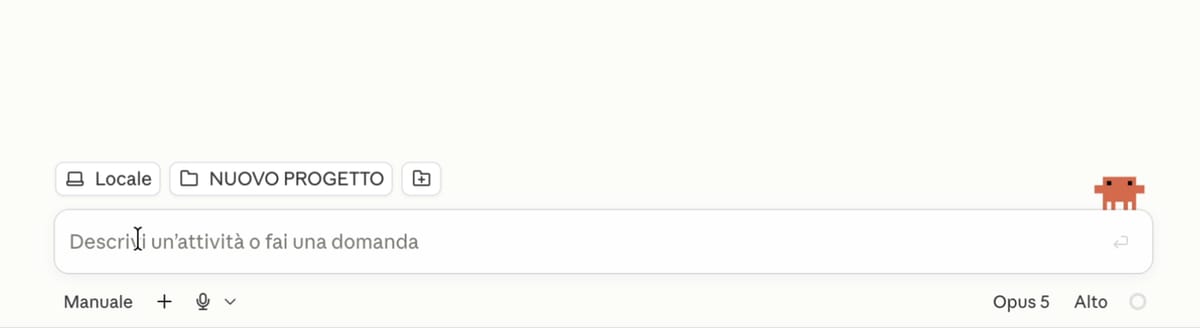
What happens while it works
You'll recognize all of this by now, because you've already seen it in chapter 2: it looks around, says what it's about to do, acts, checks, and finally talks to you.
With one new thing: at some point it stops and asks you for permission. That's not a glitch, and it's the most important thing in this lesson. The model asked for a tool that actually touches your files, and before using it, the toolkit checks with you.
How it shows up, in the two places:
In the desktop app — by default you're in Manual mode: Claude proposes the change and shows you a comparison between the file as it was and as it would become, with two buttons to accept or reject. Until you accept, your file isn't touched. If you reject, it asks how you'd rather proceed.
From the terminal — the request shows up inline, in the flow of text, and you answer right there.
For now, look at what it's asking and, if it looks right to you, say yes.
If the result isn't what you wanted
It happens, and it's normal. The right reaction isn't to start over from scratch, or to quietly fix it by hand: tell it. "Not like that: more like this." You're inside a loop, and correcting is the intended way to use it.
In most cases it's settled right there, without touching either the model or the effort.
What's next
You've done the full loop: installed it, opened it in the right folder, picked the engine, given it a task, gotten a result. From here on you're no longer learning how to get it started: you're learning how to direct it.
And it starts with the question that already popped up on your screen by itself, when it asked for permission: what do I let it touch? That's the first bucket, and it's the next chapter.
Did you get it?
Two minutes, no grade. Trying to answer — even getting it wrong — cements the concepts far more than rereading. Not in the mood? Skip it: the lesson still counts as complete.
What qualities should the first task have?
The first task isn't there to measure Claude Code: it's there to make you go through the whole motion once, successfully. Small so it succeeds, yours so you actually care about the result, checkable so you can say «yes, that's what I wanted».
While it's working, it stops and asks you for permission. What does that mean?
This is the toolkit doing its job: the model asked for a tool, and before actually using it, the tool checks with you. In the desktop app you see it as a proposed edit to accept or reject; from the terminal, as an inline question. How to tune these permissions is the chapter that starts right now.
The result isn't what you wanted. What's the right reaction?
You're inside a loop, not standing in front of a vending machine. Saying «not like that, more like this» is the normal way to use the tool — and in most cases it settles things without touching either the model or the effort.
 Course Claude Code Basics
 -
Chapter 1 Introduction
-
Chapter 2 What's Underneath
-
Chapter 3 You Choose the Engine
-
Chapter 4 First Time at the Controls
-
Chapter 5 What You Let It Touch
-
Chapter 6 What It Knows About You
-
Chapter 7 Skills
-
Chapter 8 How Many You Put to Work
-
Chapter 9 What It's Connected To
-
Chapter 10 Automating the Setup
-
Chapter 11 Wrap-Up