Claude Code Basics Lesson 21 of 46
The Modes: How Much Leash You Give It

- Modes are a single dial that shifts the overall behavior, not one rule at a time.
- They're a scale: from "touches nothing" all the way to "never asks".
- By default you're on Manual: it asks before touching anything.
- The last step should never be used on the computer that holds your work.
Rule and mode: two different things
In the last lesson you learned to decide one thing at a time: this one always yes, that one never. The mode is the other tool, and it's bigger: it shifts the overall behavior of the session.
You use them together, and the two don't cancel each other out: denials stay in force in every mode. The mode decides how much it bothers you about everything else.
The scale, from most cautious to most relaxed
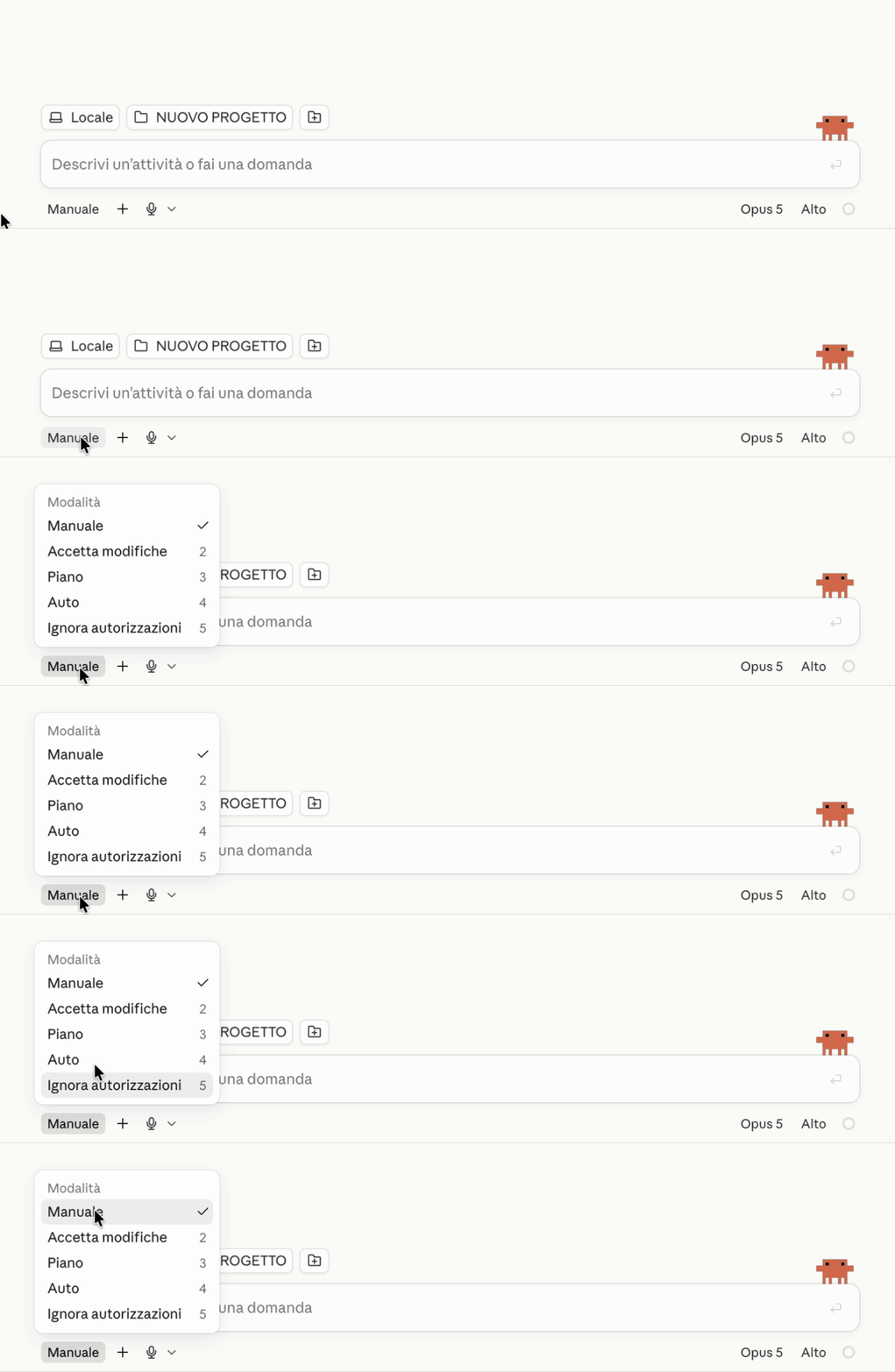
Plan — what everyone calls Plan mode — touches nothing. It reads, looks around, explores, and tells you what it would do. Zero changes to your files. It's useful enough to get a lesson all to itself, the next one.
Manual — the default mode: before changing a file or running a command, it asks. In the desktop app this is the one you've already seen, with the proposed change and buttons to accept or reject.
Accept edits — file edits go through on their own, commands still stop for confirmation. This is the right step once you've already agreed on what to do and just need it done.
Auto — approves on its own, with safety checks that verify what it's doing matches what you asked for.
Bypass permissions — never asks anything anymore. We'll cover this below, and not in the way you're hoping.
In the desktop app you pick the mode from the control in the bottom left, next to the text box; from the terminal there's a keyboard shortcut that cycles through the modes, and you can also set one as the default.
How you move up, in practice
The sensible path is always the same, and it's gradual:
At the start stay on Manual and watch what it asks you. This is how you learn what it actually does, before giving it more rope.
When you notice you're repeating the same yes, don't switch modes: write a rule. It's more precise and doesn't widen anything else.
When you're working in a burst on something you've already agreed on, bump up to "accept edits" for that session, then drop back down.
The mode is a choice per session, not a lifelong decision. Raising it for twenty minutes and lowering it back down is the normal way to use it.
Now what
I left you hanging on the first step of the scale. It's the most interesting one of all, because it's not there to protect you: it's there to help you work better. In the next lesson, Plan mode.
Did you get it?
Two minutes, no grade. Trying to answer — even getting it wrong — cements the concepts far more than rereading. Not in the mood? Skip it: the lesson still counts as complete.
What's the difference between a permission rule and a mode?
A rule is surgical: "this one specific thing, always yes." A mode is the general dial: "in this session, in general, behave like this." You use them together — and denials stay in force across every mode.
You're making repetitive edits you've already agreed on, and it asks you to confirm every two minutes. What do you do?
"Accept edits" is built exactly for this: file edits go through on their own, commands still stop for confirmation. Skipping every check would be a different thing entirely — and on your own computer it isn't a reasonable choice.
When does the mode that never asks anything make sense?
It's not a matter of trust: it's that you're removing the one point where someone can say no. It makes sense where a mistake can't hurt anything of yours — isolated, disposable environments. On the computer that holds your work, no.
 Course Claude Code Basics
 -
Chapter 1 Introduction
-
Chapter 2 What's Underneath
-
Chapter 3 You Choose the Engine
-
Chapter 4 First Time at the Controls
-
Chapter 5 What You Let It Touch
-
Chapter 6 What It Knows About You
-
Chapter 7 Skills
-
Chapter 8 How Many You Put to Work
-
Chapter 9 What It's Connected To
-
Chapter 10 Automating the Setup
-
Chapter 11 Wrap-Up