Claude Code Basics Lesson 27 of 46
The Context Window: How Much It Can Hold at Once

- The context window is the table: everything the model has in front of it right now.
- It's not memory: it's capacity. And it clears the moment the session closes.
- It gets filled by the instructions, the files it opens, command outputs, and the whole conversation.
- Full table = worse answers and higher costs, with no warning at all.
The table, not the memory
Picture your collaborator sitting at a table. To work, it needs everything in front of it at once: the notes pinned up in the office, the documents it's opened, the notes from what you've said to each other so far.
That table has a surface, and it's finite. The context window is that surface.
Careful not to confuse it with memory, because they're opposites: memory is what's left afterward, the table is what fits right now. And at the end of the session, the table clears completely.
What fills it up
Your permanent instructions — the CLAUDE.md, sitting there from the start. That's why the last lesson insisted on keeping it short.
The files it opens. Every file it reads lands on the table and stays there.
Command outputs, including the very long ones and the failed ones.
The whole conversation, yours and its, from the start of the session.
Now recall the lesson on the model with no memory: since the model rereads everything from scratch every turn, the table isn't just capacity — it's also the bill. The more stuff is on it, the more every single move costs.
Full doesn't mean better
The table on these models is enormous, and the natural reaction is: great, so I'll just dump everything on it. It's the same mistake as the folder that's too big and the instructions file that's too long.
When the table fills up with stuff that's no longer needed — files opened half an hour ago, failed commands, a topic you abandoned — the things that matter carry less weight. The result is that answers get worse, slowly, with no warning.
You don't get an error. You get increasingly imprecise answers, and you blame the model.
Watching it: /context
No need to go by feel: /context shows you how full it is and what's taking up the space. It's the same command you met in the installation chapter, and it's also where you check that your instructions file actually got loaded.
In the desktop app you don't even need the command: the dot in the bottom right, next to the effort setting, opens the summary.
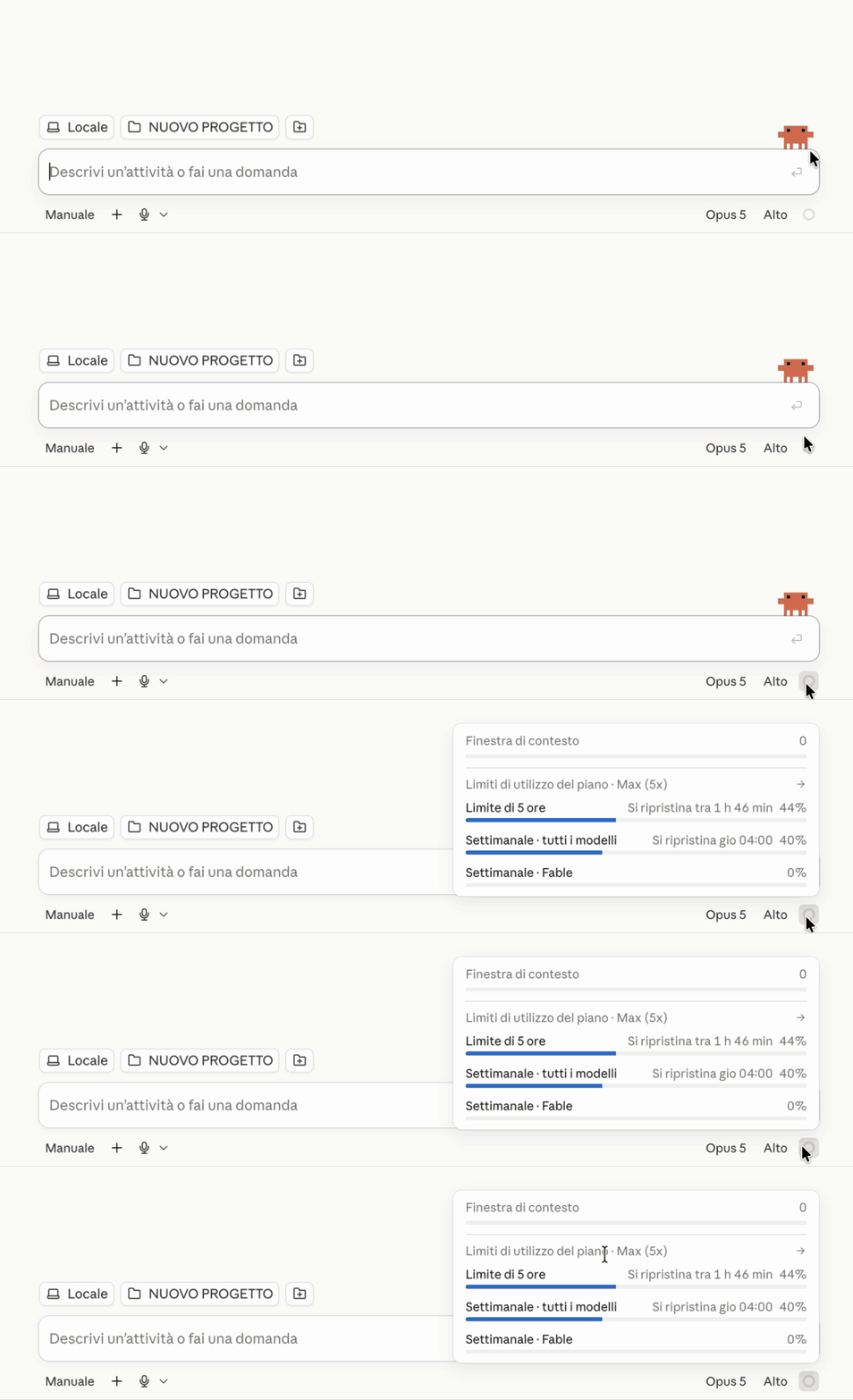
The useful thing isn't the number: it's the breakdown. If you find out half the table is taken up by your instructions, you know what to trim. If it's the conversation that's taken over, you know it's time to clean up.
And now
I've said "clean up" three times across two lessons without ever explaining it. In the next one we look at the two moves that do it — and there are two, different ones, and using the wrong one in the wrong spot is a shame.
Did you get it?
Two minutes, no grade. Trying to answer — even getting it wrong — cements the concepts far more than rereading. Not in the mood? Skip it: the lesson still counts as complete.
What is the context window?
It's not memory: it's the table. Everything it needs in front of it right now — instructions, conversation, files it's read, command outputs — has to fit on it together. Once the session closes, the table clears.
The table is nearly full. What should you expect?
The degradation is silent, and that's what makes it sneaky: no error, just answers that get gradually less precise because the important things are drowned among the useless ones. And every turn re-reads all of it, so it costs more too.
How do you check how much space you've used up?
`/context` is the dashboard: it shows you how full it is and what's taking up the space — instructions, files, conversation. It's also where you check that your CLAUDE.md actually got loaded.
 Course Claude Code Basics
 -
Chapter 1 Introduction
-
Chapter 2 What's Underneath
-
Chapter 3 You Choose the Engine
-
Chapter 4 First Time at the Controls
-
Chapter 5 What You Let It Touch
-
Chapter 6 What It Knows About You
-
Chapter 7 Skills
-
Chapter 8 How Many You Put to Work
-
Chapter 9 What It's Connected To
-
Chapter 10 Automating the Setup
-
Chapter 11 Wrap-Up